
Post Purchase Upsells
Create targeted offers that show after checkout, before the order confirmation page.
If a customer accepts the offer, the product is added to the order and payment is processed automatically. If they decline, they continue to the Thank You page.
How it works
Go to Post Purchase Upsells in Order Automator to create an offer.
When a customer checks out, Order Automator checks your enabled offers against the order data.
- If an offer matches the order, it can show to the customer after checkout
- If multiple offers match, the most recently created matching offer is shown
- If the offered product is already in the order, that offer is skipped
- If the product is unavailable in Shopify, the offer is paused until the product is active again
Only 1 post-purchase offer can show after checkout. Each accepted offer adds a quantity of 1 to the order.
The offer page can show:
- Product image
- Product title
- Product description
- Optional discount
- Optional variant selector
- Accept and decline buttons
Example
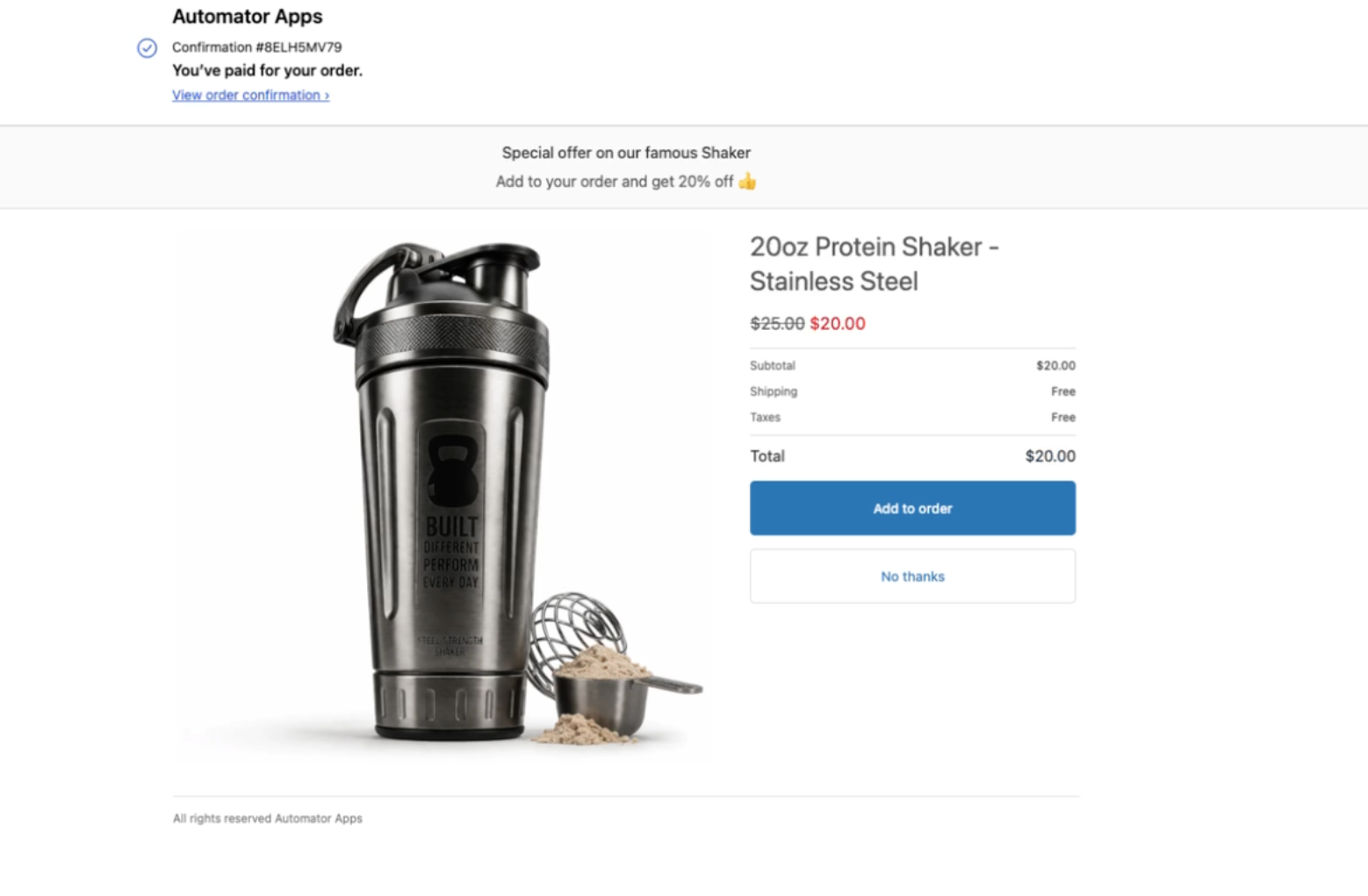
Enable Order Automator in Shopify checkout settings
Before offers can show, Order Automator needs to be selected as your post-purchase app in Shopify.
- Go to Shopify Settings > Checkout
- Scroll to the Post-purchase page section
- Select Order Automator
- Save your checkout settings
Create an offer
- Go to Post Purchase Upsells in Order Automator
- Click Create new offer
- Select the product you want to offer
- Add your banner heading, subheading, and button text
- Choose when the offer should show
- Click Create offer
Each offer can include 1 product. If that product has variants, customers can choose from the available variants on the offer page.
Discount options
Discounts are optional.
You can create:
- Fixed amount discounts, ex: $5 off
- Percent discounts, ex: 15% off
If you add a discount, the discounted price shows on the offer and the discount is applied when the customer accepts.
Show on all orders or certain orders
You can show an offer on all orders, or create conditions to target specific orders.
Available condition types:
- Customer language
- Number of items
- Number of line items
- Order total
- Product SKU
- Product title
- Product type
- Product vendor
- Shipping country code
- Variant title
Examples:
- Show an accessory after a customer buys a related product
- Show a bundle offer when the order total is above a certain amount
- Show a country-specific offer based on shipping address
If you choose Show on certain orders, create the conditions in the rule builder. You can test conditions with the Rule Tester while creating or editing the offer.
Downsell offers
You can optionally show a downsell offer if the customer declines the first offer.
Use a downsell to offer:
- A different product
- A lower-priced product
- A larger discount
If the customer declines the first offer and the downsell product is not already in the order, the downsell offer is shown. If they accept, the downsell product is added to the order.
Analytics
The Post Purchase Upsells page includes stats so you can see how offers are performing.
You can view stats :
- Total views
- Total purchases
- Conversion rate
- Extra revenue
- Performance over time
- Top viewed products
- Top purchased products
- Recent upsell activity
Testing
After creating an offer, place a test order to go through the full customer flow:
- Add products to cart that match your offer conditions
- Complete checkout
- Confirm the offer shows after checkout
- Accept the offer and confirm the product is added to the order
You can also use the Rule Tester while creating or editing an offer to confirm whether an existing order matches the offer conditions.
Tips
- Offer an add-on product that goes well with what the customer just bought
- Offer a popular product with a discount
- Use a downsell if you want to show a second offer after the first one is declined
- Check stats after the offer has traffic, then adjust the product, discount, or conditions
- Shopify holds orders for up to 1 hour during the offer. If a tag or fulfill rule should see the items the customer added, turn on Wait for fulfillment holds to be released on that rule
Here's a guide with industry stats + more tips: Boost Revenue Automatically with Post Purchase Upsells on Shopify
Limitations
The post-purchase offer page is controlled by Shopify and only appears when an order meets Shopify's eligibility rules. Your offer will not be shown in these cases:
Payment method
- Paid with a wallet or installment service: Apple Pay, Google Pay, Amazon Pay, PayPal, Klarna, Affirm, or Afterpay.
- Paid with a gift card, or any method other than a credit card.
- Paid through a gateway that requires CVV/CVN retention: Braintree, Payflow Pro, PayPal Payments Pro, or Eway.
- ✅ Shop Pay is supported and will show the offer like any normal credit-card checkout.
Order & checkout conditions
- Sales channel must be Online Store (POS, draft orders, and other channels won't show it).
- Order total must be $0.50 or more.
- Orders with duties combined with multiple currencies are excluded.
- Local delivery and local pickup orders are excluded.
- Digital-only orders (no shipping address) can't have subscription products added via post-purchase.
- During flash sales or extreme platform load, Shopify may delay order creation and skip the post-purchase page.
App & offer rules
- Only one post-purchase app can be active per store. Order Automator must be selected under Settings → Checkout → Post-purchase page.
- A customer can accept a maximum of 3 post-purchase offers per checkout.
Analytics caveats
- Third-party pixels (Google Analytics, Facebook, Pinterest, Snap) report only the initial purchase value, not the post-purchase upsell.
- ScriptTag-based analytics have incomplete conversion data (they only fire on the Order status page).
Troubleshooting
Offer does not show
- Confirm Order Automator is selected in Shopify Settings > Checkout > Post-purchase page
- Confirm the offer is enabled
- Confirm the order matches your offer conditions
- Confirm the offered product is active and available in Shopify
- Confirm the product is not already in the order
If you need help, send us your myshopify URL or store ID, the order number, and a screenshot or description of the offer you expected to show.